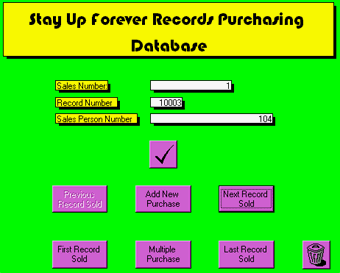
How to sell a record using the CPS
Selling a record couldn't be easier! Have a look at the buttons below and you'll see what I mean:
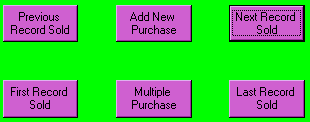
To sell a record, click the button that says "Add New Purchase". Don't enter anything into the field marked "Sales Number" as this is entered for you by the program. Look at the price sticker on the record, and there should be a little five-digit number. Type these in the field marked "Record Number" and then type in your employee number in the field marked "Employee Number". When you have finished click the button with the big check mark. Write the Sales Number on the Customer's Receipt. If some one is buying more than one of the same item, click "Multiple Purchase" and the program will save you having to retype it.
The "First Record Sold" button and the "Last Record Sold" button take you to the first purchase made since the file was cleared and the last purchase made respectively. "Previous Record Sold" takes you to the purchase just before the one you are looking at, and the "Next Record Sold" button takes you to the one after.
The last button is the little one with the trashcan on it. This is "Delete Purchase". This should be used when a customer is returning a record. Find the customers Sales Number (it should be on the receipt) and click the trash button. The program will ask you if you are really sure. If it is definitely the right purchase, then click Yes. Otherwise click No, and check again. Remember, a person can only return a record within the working week they bought it.